✦ New For electrical contractors & preconstruction teams

Electrical drawings in. Schedules out.

Superb reads electrical bid drawings the way your best estimator does. It counts every fixture, receptacle and fire alarm device on the floor plans, traces every feeder on the single-line diagram, and hands your preconstruction team a schedule to check, edit and take into the estimate.

Vector, CAD and scanned PDFs Runs on your own server Excel & CSV export
superb.genicon.ai/tasks/8/jobs/8
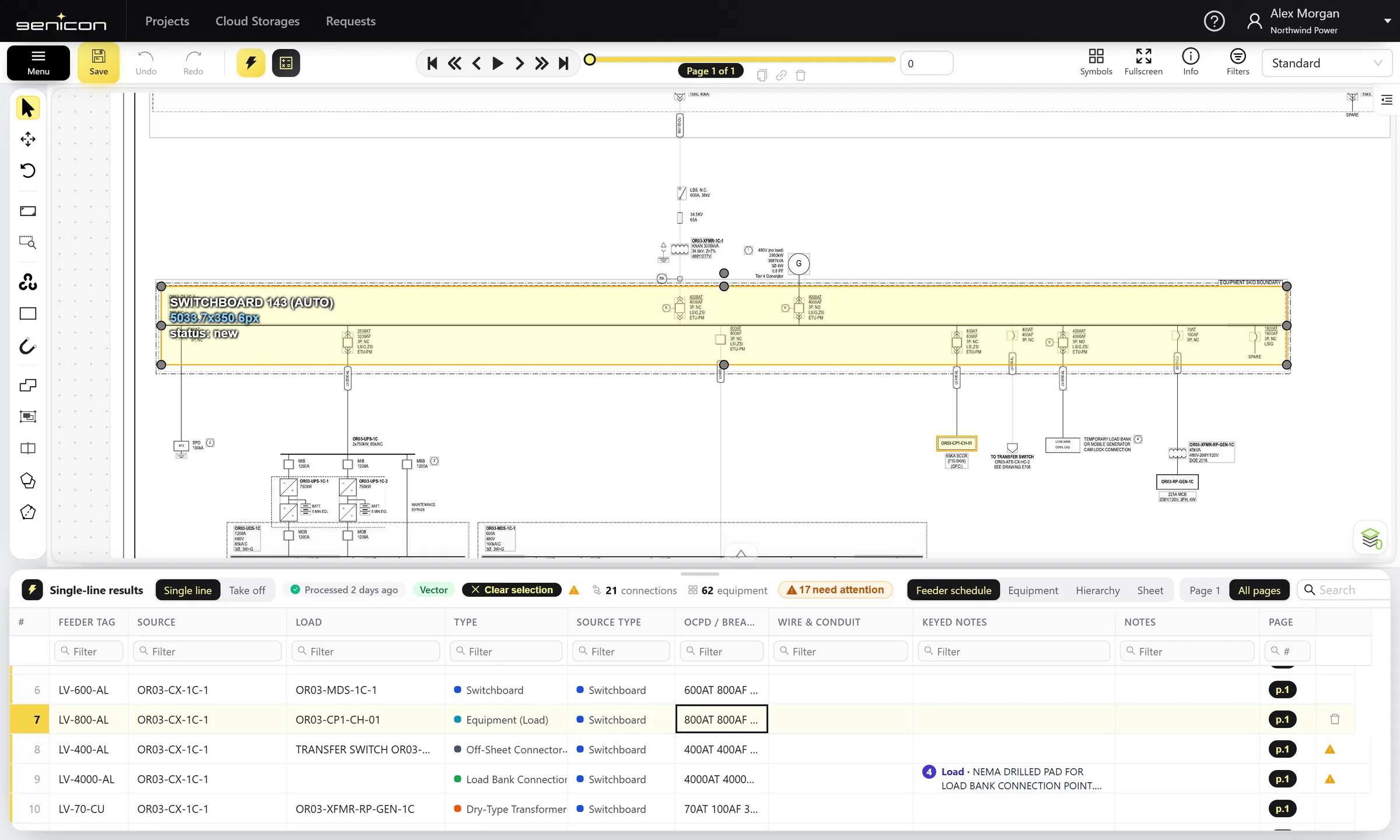
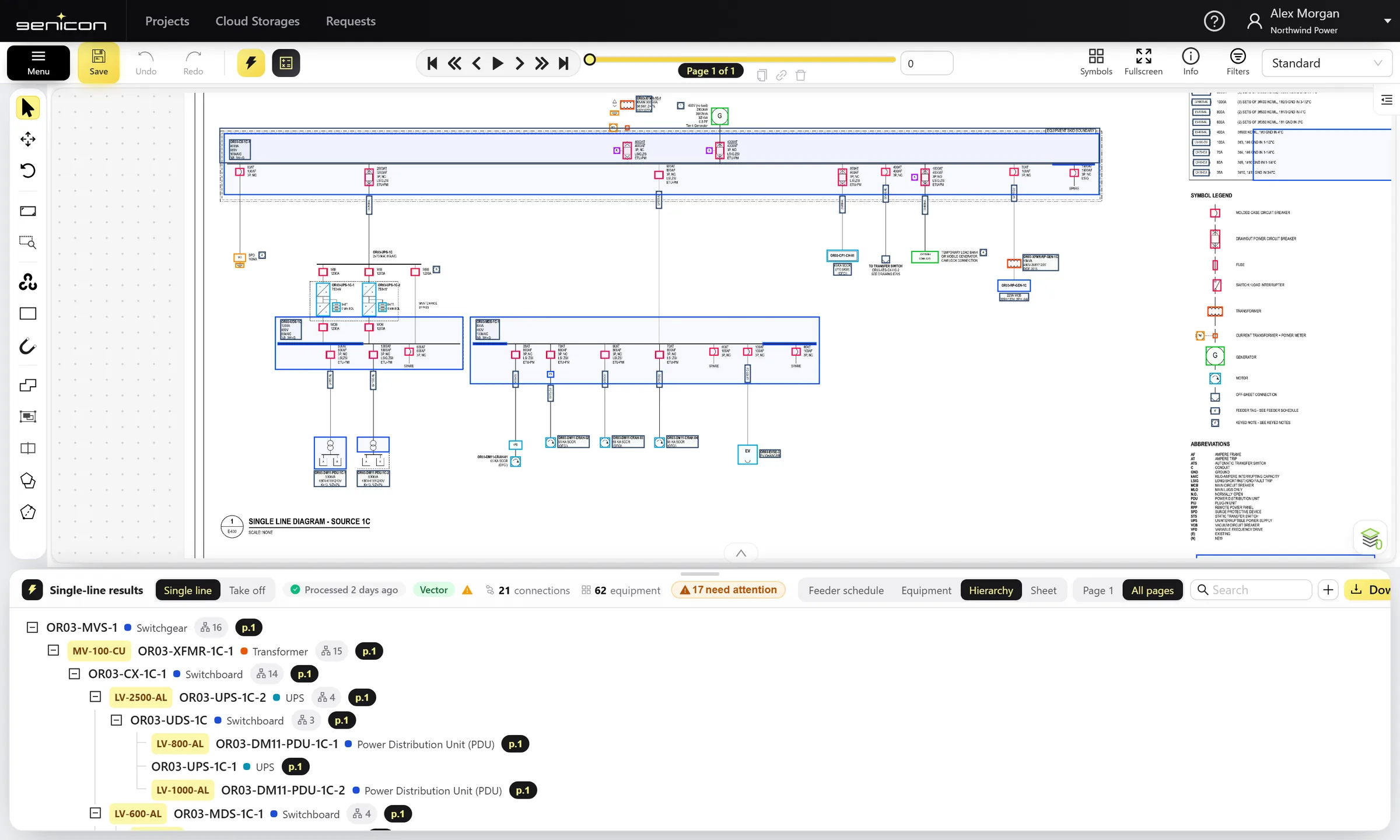
Superb processing a single-line diagram: a feeder row is selected and its source switchboard and load are highlighted on the drawing
21
connections traced
LV-800-ALOR03-CX-1C-1 → OR03-CP1-CH-01OCPD 800AT · 800AF
62
equipment named
17
flagged for your review
Real output, real app

Watch a sheet turn into data.

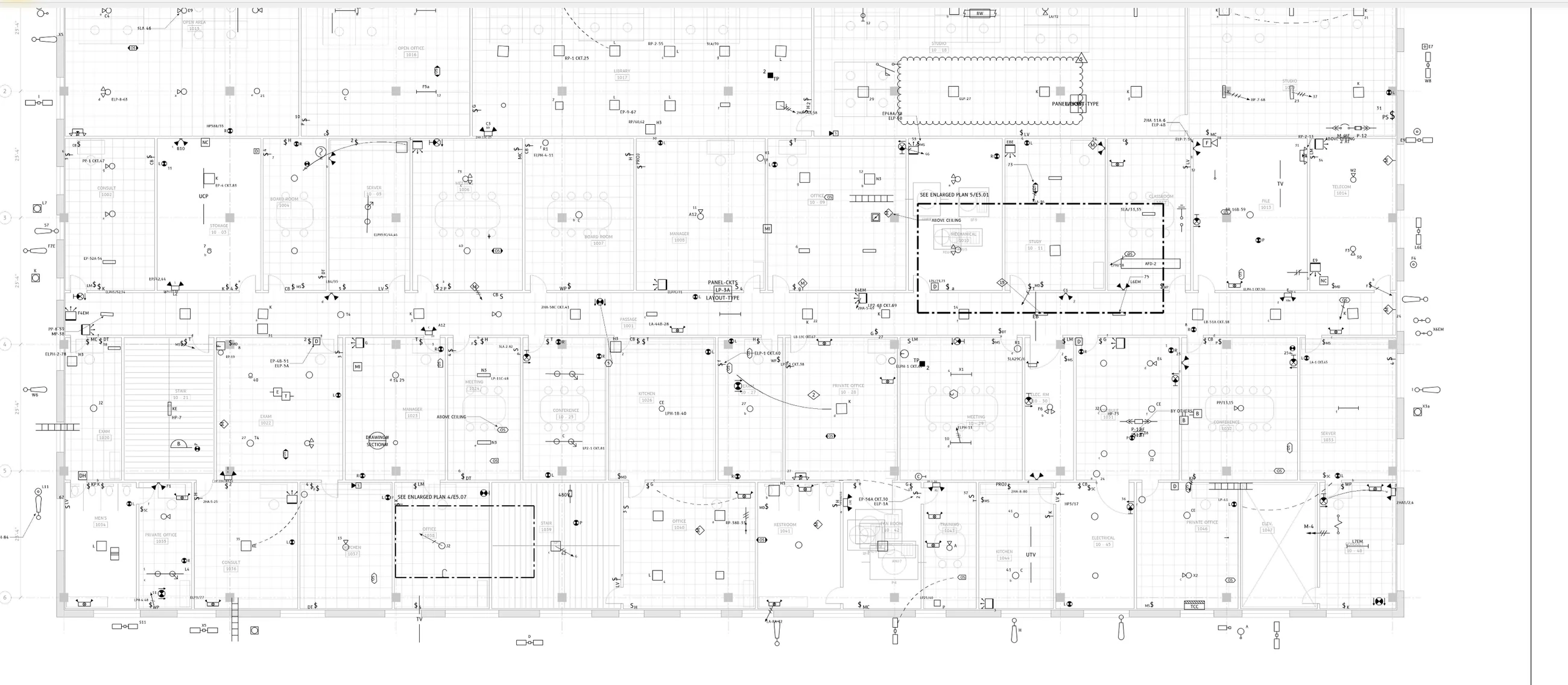
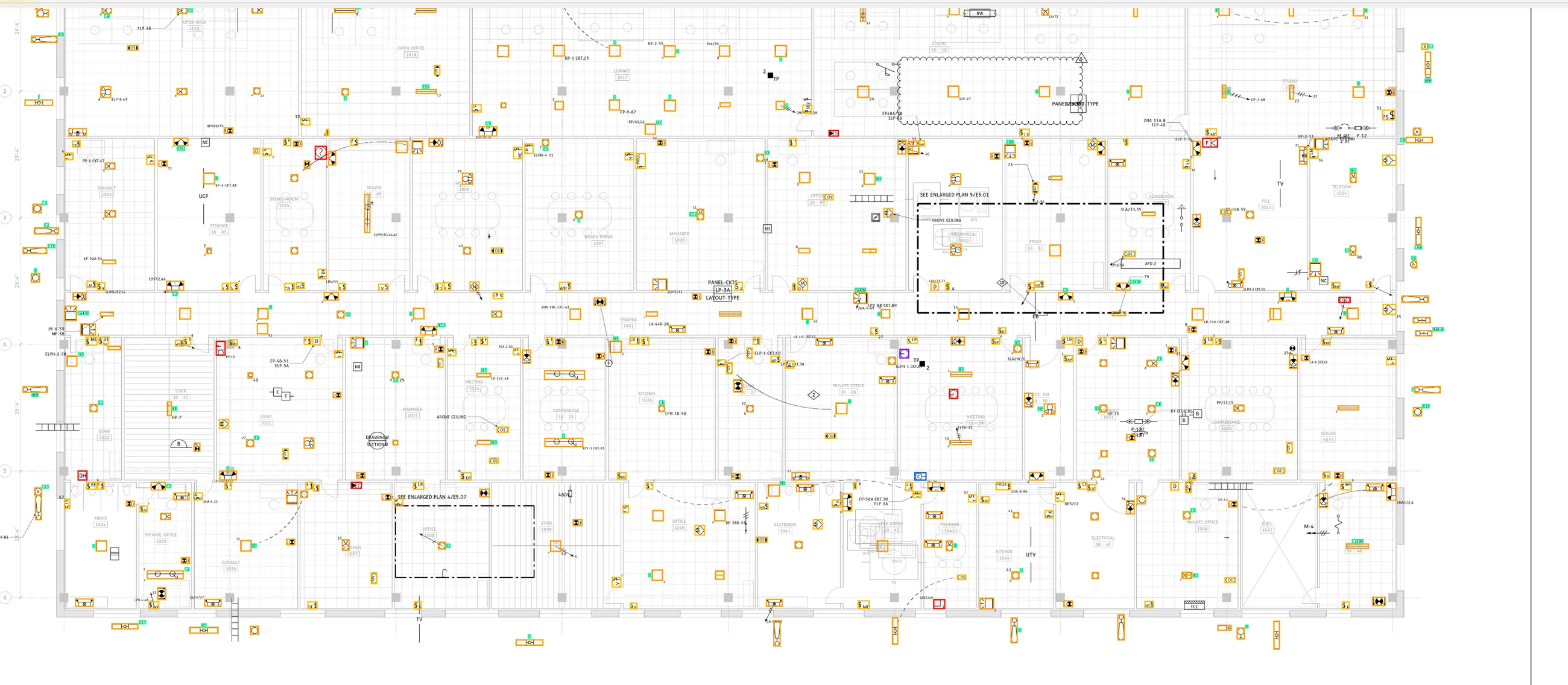
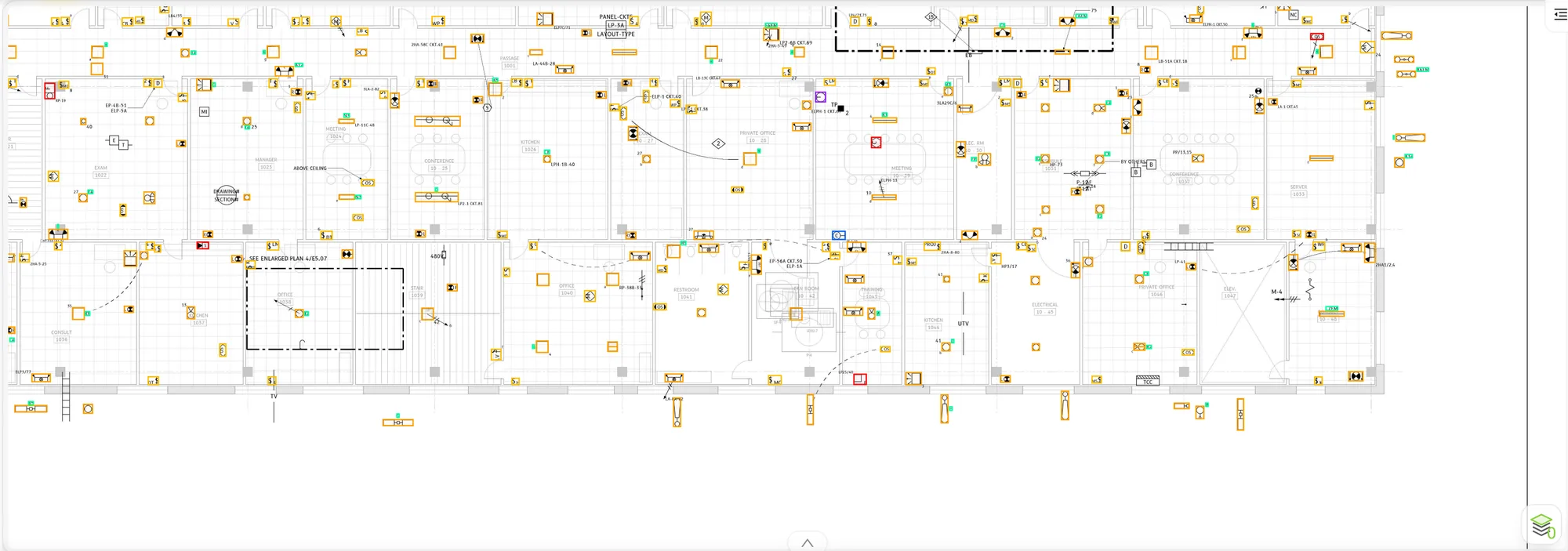
Drag the beam. Behind it is what Superb found: every box is a device it counted or a piece of equipment it traced, ready for you to review. Ahead of it is the PDF you uploaded.

Drag, or use the arrow keys
The uploaded lighting and power floor plan The same floor plan with every device boxed by Superb Superb Your PDF
576
devices found
67
device types
297
lighting fixtures
91
marked "to check"
Why it matters

Take off without the highlighter.

One bid set can mean thousands of symbols and hundreds of feeders, counted and retyped by hand against the bid date. One missed feeder or a wrong mounting type changes the number. Superb does the reading; your estimators make the calls.

Today by hand

  • Count hundreds of symbols per sheet with a highlighter, then count them again.
  • Retype panel names, ratings and feeder tags into a spreadsheet.
  • Follow every wire across the sheet to work out what feeds what.
  • Dig through luminaire schedules and keyed notes for mounting and scope.

With Superb ✦ AI

  • Every device boxed and counted, by priced type and by page.
  • Names, ratings and tags read straight from the drawing.
  • Feeders traced equipment to equipment, with the breaker each one leaves from.
  • Mounting and emergency types read from the schedule, and flagged when the drawing doesn't say.
How it works

From PDF to schedule in four steps.

No setup and no templates. Upload the bid set, press one button, check what Superb found and take the numbers into your estimate.

STEP 01

Upload

Drop single or multi-page PDFs. Superb checks every page first (vector, drawn text or scanned) and tells you what that means for the result.

STEP 02

Detect

One click. Superb's own detection models box the equipment and devices, read the text in every box and trace the wires between them.

STEP 03

Review

Results land on the drawing as editable boxes. Uncertain calls are flagged, so your time goes to the items that need a person.

STEP 04

Export

Feeder schedule, equipment list and device quantities, with your corrections included. Download as Excel or CSV for your estimating software.

Single-line diagrams

Every feeder, traced and tabled.

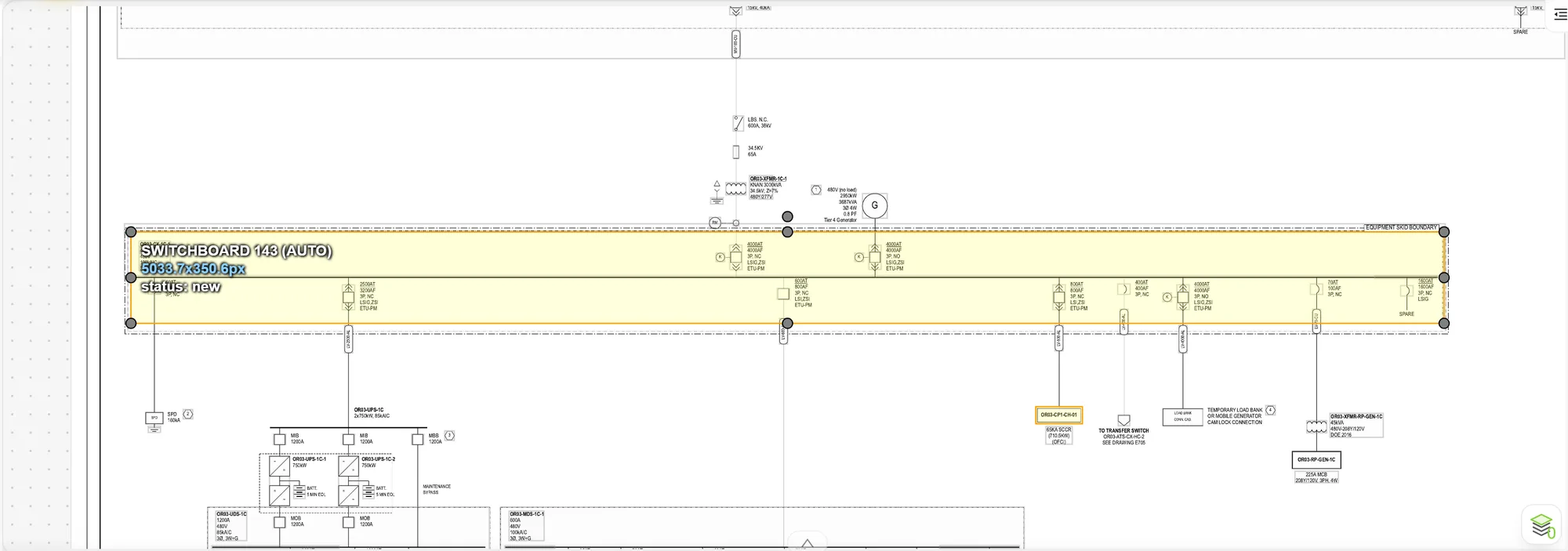
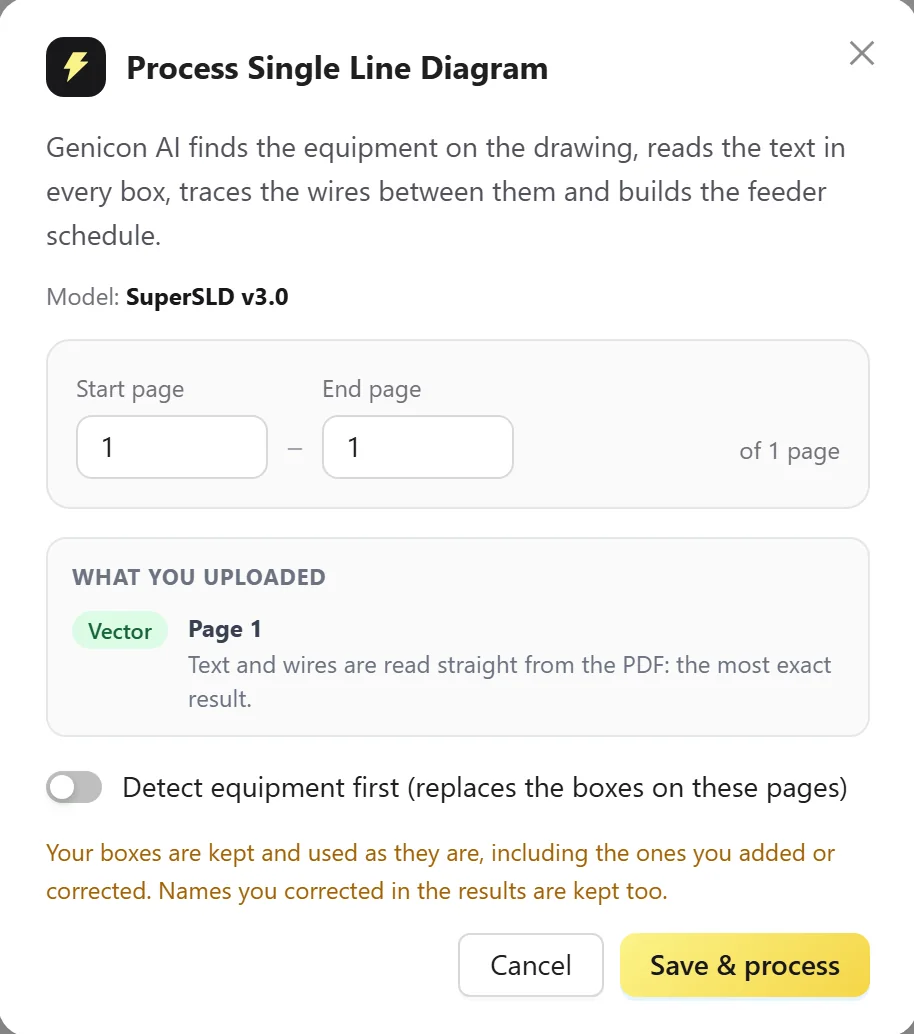
Press ⚡ Process and Superb turns the single-line diagram into a feeder schedule your estimators can price: what feeds what, through which breaker, on which wire. Every row stays linked to the drawing.

Processing E-600 · Single line diagram
UTILITY 34.5 kV T-1 2500 kVA · 34.5kV–480Y/277V 4000AT MSB-1 4000A · 480V · 65kAIC 800AT 225AT 400AT LV-800 LV-225 LV-400 UPS-1C LP-2 ATS-1 G GEN-1 750kW PDU-A EM-1 Transformer Switchboard UPS Panel ATS Generator PDU Panel
Feeder schedule7 rows · 0 to check
FeederSourceLoadOCPD
F-1UTILITYT-1—
F-2T-1MSB-14000AT
LV-800MSB-1UPS-1C800AT
LV-225MSB-1LP-2225AT
LV-400MSB-1ATS-1400AT
G-1GEN-1ATS-1—
EM-1ATS-1EM-1—
Illustration of the flow. Screens below are from the real app.Excel
  • Traced equipment to equipment

    Breakers and buses inside a switchboard count as parts of it, and the breaker a feeder leaves from fills the OCPD column. Click a row and its source and load light up on the drawing.

  • Names what it finds, even when the text isn't text

    Many CAD exports draw letters as line strokes, and some sheets are scans. Superb reads them with built-in OCR, keeps names apart from ratings and shows the text it read.

  • The whole system as a tree

    From the utility down to the last panel: switchgear, transformers, switchboards and loads in one hierarchy you can open and jump through.

  • Reads the sheet, not just the symbols

    Title block, revisions, general notes, keyed notes and symbol legend. Keyed notes are attached to the equipment they point at, and wire & conduit sizes come with NEC sanity checks.

Single-line diagram in Superb with detected equipment
Feeder schedule with feeder tag, source, load, type, OCPD and keyed notes Equipment list with names, ratings and the text read from the drawing Hierarchy tree of the electrical system
65 single-line classes
Quantity take off

Counted by priced item, not by picture.

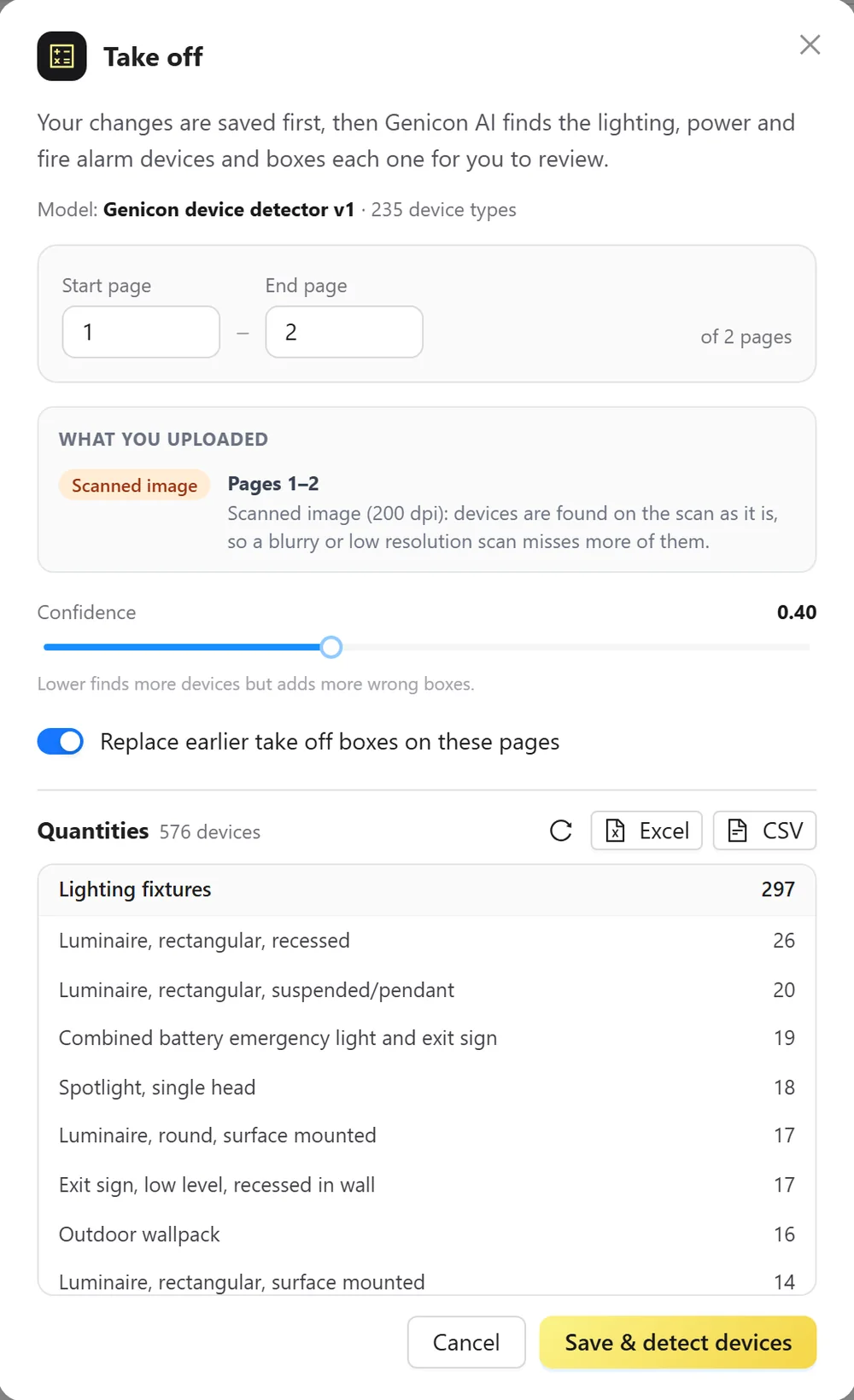
A recessed troffer and a surface wrap can look identical on a plan, but they carry different material prices and labor units. Superb finds the symbol, then reads the rest of the drawing to decide which item it really is.

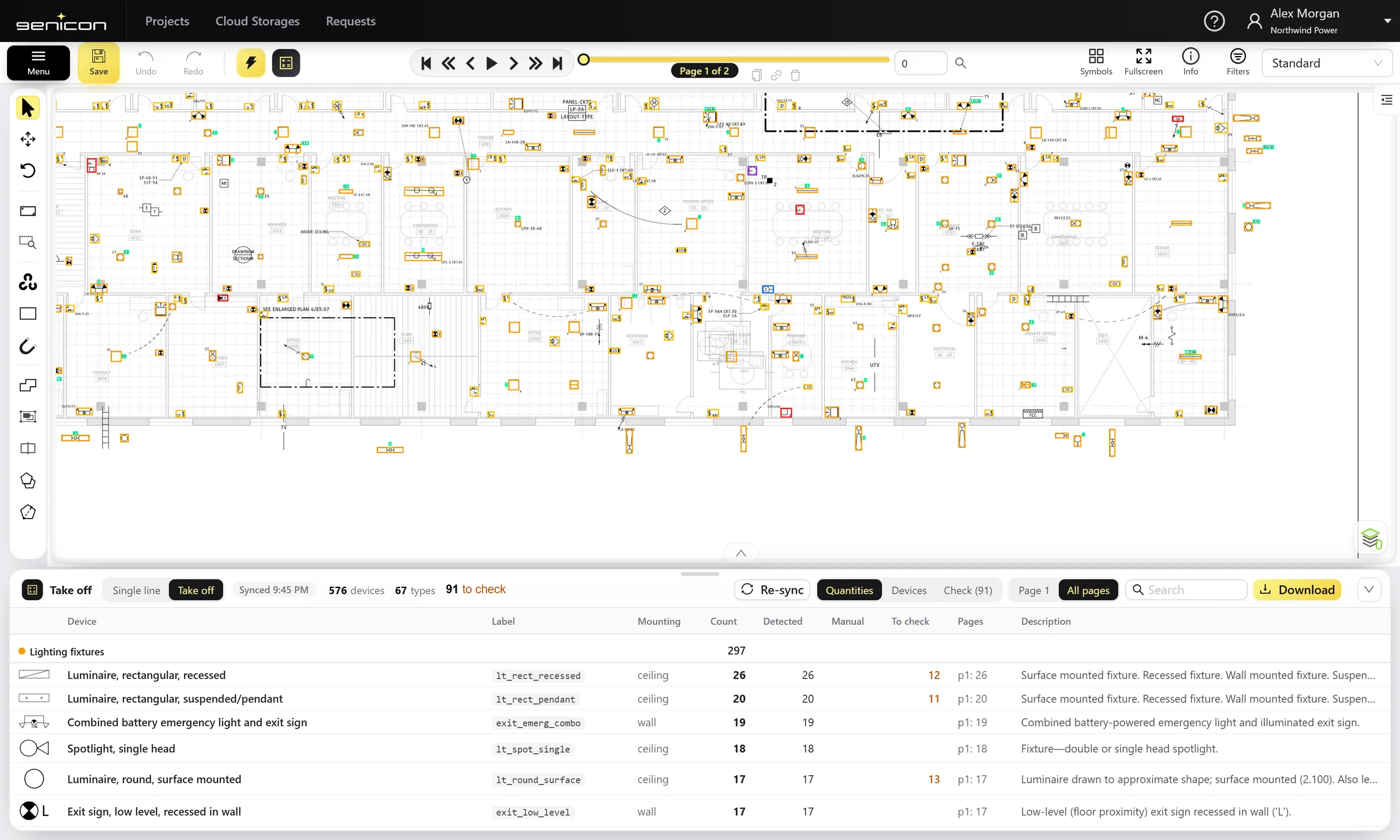
  • Quantities by type and page

    Lighting, controls, receptacles, power, telecom and fire alarm, grouped and counted, with Detected, Manual and To-check columns.

  • Shows how every item was decided

    The "Decided by" column says where the answer came from: the luminaire schedule, the symbol legend, a type tag or a note. Anything the drawing doesn't settle is marked to check.

  • Counts that include your edits

    Add, fix or delete a box and press Re-sync. The quantities update, and the Excel or CSV export matches what you reviewed.

Lighting fixtures 29 Lighting controls 29 Receptacles 26 Power 69 Fire alarm 69 Telecom 5 Tags 8
Floor plan in Superb with every device boxed
Quantities table grouped by category with counts per device type Device list with the Decided by column showing Schedule or Check
235 device types
Decided by the drawing

How Superb settles the mounting type.

It looks for evidence on the sheet, in this order, and tells you which one it used. Superb never quietly guesses: when no text decides it, the item goes on your check list.

1Row in the luminaire scheduleSchedule
2The page's symbol legendLegend
3Letters inside the symbolLetters
4Type tag beside the fixtureType tag
5Mounting words written nearbyNote
6Same as the fixture next to itTo check
7Symbol only, nothing writtenTo check
Built for preconstruction teams

Your drawings. Your server.

Superb is built for electrical contractors who bid real work: your bid documents stay private, and the results come out in the formats your estimators already use.

Private by design

Superb runs on your own server or on ours. Detection and text reading happen inside Superb: your drawings never pass through a third-party AI service.

Excel & CSV

Feeder schedules, equipment lists and quantities, exactly as reviewed.

.xlsxExcel
.csvCSV

235
device types in take off
65
single-line equipment classes
3
kinds of PDF, read automatically
1
click to process a sheet
Questions

Good questions, straight answers.

Who is Superb for?
Electrical contractors' preconstruction teams: estimators, preconstruction managers and project engineers who turn bid drawings into quantities, feeder schedules and a price. Superb does the counting and tracing; your team checks it and owns the estimate.
Which drawings does Superb read?
Electrical single-line and riser diagrams, and floor plans for lighting, power, fire alarm and telecom. Upload them as PDFs, single or multi-page. Vector exports, CAD drawings with stroked text and scanned sheets all work; Superb tells you which kind each page is before it runs.
Do I still need to check the results?
Yes, and Superb is built for that. Every item it finds sits on the drawing as a box you can move, relabel or delete, and the calls it isn't sure about are flagged ("needs attention" on single lines, "to check" in take off). Your corrections flow straight into the schedules and quantities you export.
Where do my drawings go?
Wherever Superb runs: on your own server inside your network, or on Genicon's hosted server. Detection and text reading run inside Superb itself. No drawing is sent to an outside AI service.
What do I get out of it?
For single-line diagrams: a feeder schedule (feeder tag, source, load, types, OCPD, wire & conduit, keyed notes), an equipment list with ratings and a hierarchy tree. For floor plans: device quantities by type and page, with how each one was decided. Everything downloads as Excel or CSV.
Does it replace our estimating software?
No. Superb produces the quantities and schedules; your estimating software and your people turn them into a price. Download Excel or CSV and bring the numbers into the tools your team already uses.
How long does a sheet take?
Usually about a minute per sheet on a standard server CPU; no GPU needed. Large sheets and scans that need OCR take longer. A whole set is minutes of machine time instead of days of counting.
Does it get better over time?
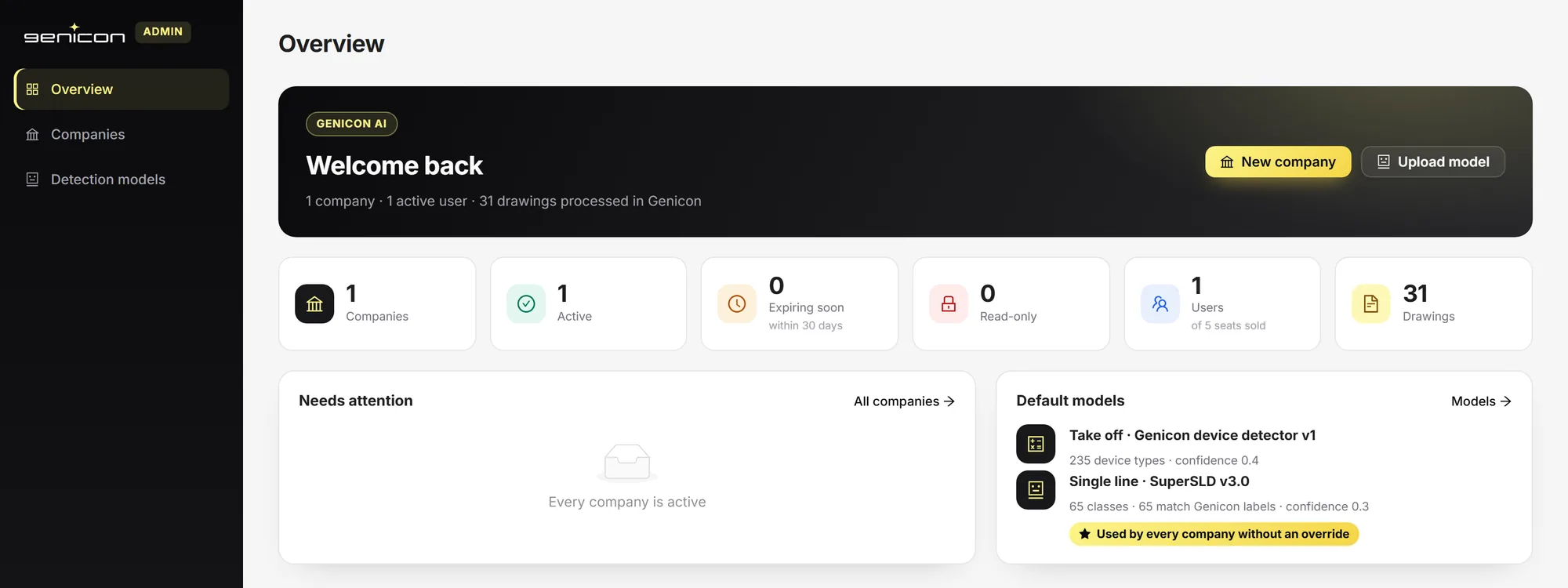
Yes. Drawings your team has reviewed become training data for the next model version, and new versions are published from the admin console and can be rolled out company by company.
Next step

Send us a sheet from your next bid. Get the schedule back.

We'll run Superb on a drawing from a project you're pricing and walk your preconstruction team through the result, live.